Preparing Proposals
This section details on how to prepare proposal for interest clients that ask for it.
Update CRM board
Before you start preparing your proposal, you will need to update the interest under CRM board of monday.com. Or you can go through this link Monday.com CRM board
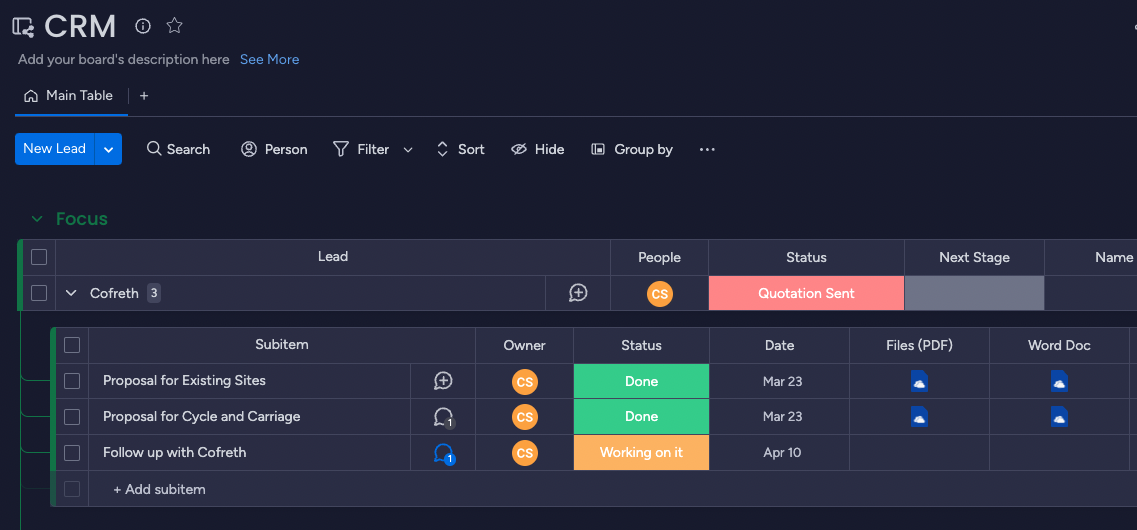
Add an item with a title e.g. Prepare Proposal for such and such. As shown in the diagram above. Don't forget to add expected date of delivery, and this task is being assigned to who.****
Prepare documents and update
All the document templates are under Document board of monday.com. You can go get there with this link. Monday.com Document Board
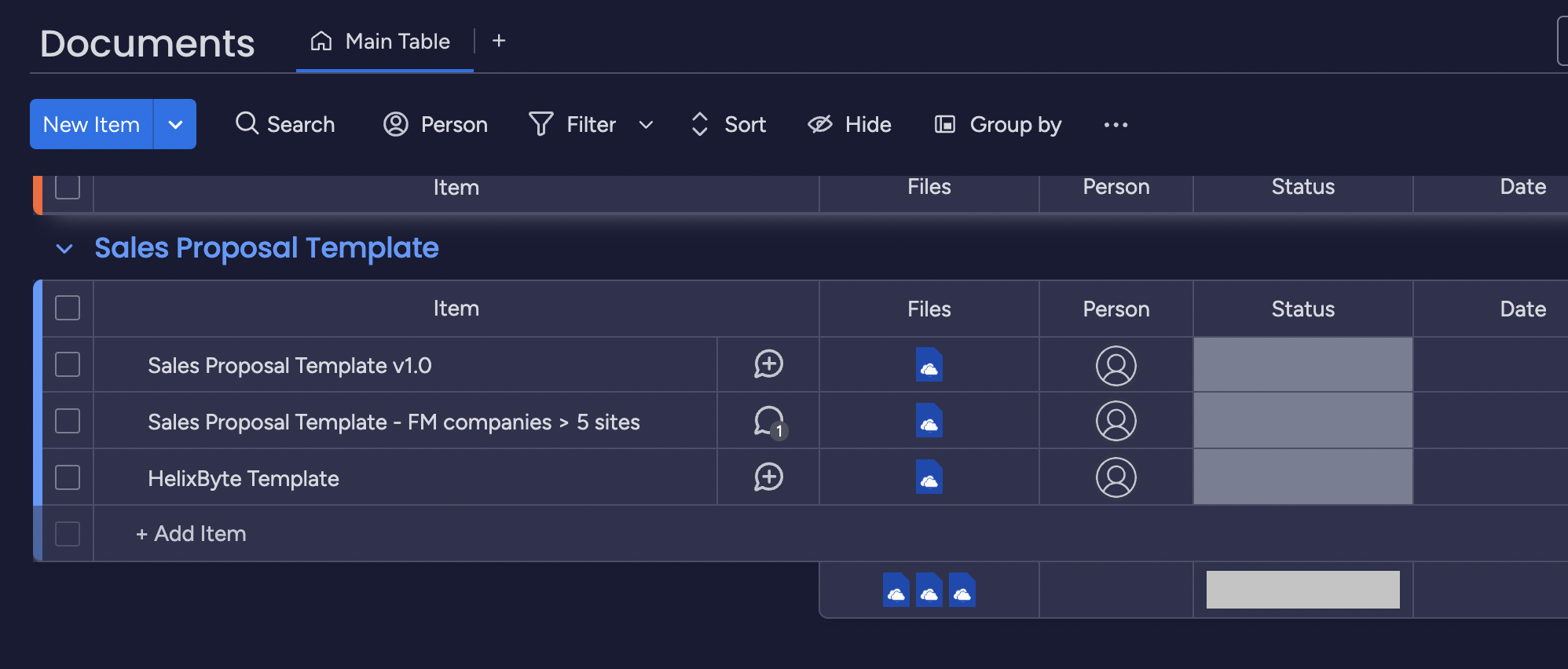
Take note on the Sales Proposal Template group inside the board. And you will find 3 types of template.
==== WORK IN PROGRESS (TO DISCUSS FURTHER ON STANDARDIZING)
// TODO: CONTINUE TO BRIEF ON HOW TO PREPARE
Sharing Links
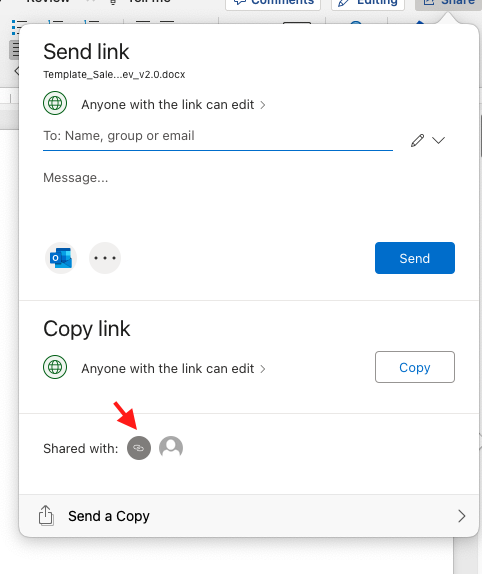
So you have completed your proposal and ready to submit to your client. Make sure you have saved your document, and click on the Share inside your word document. You should see the following window, click the link button as shown through the red arrow pointing in the diagram below;
You will most likely see the following;
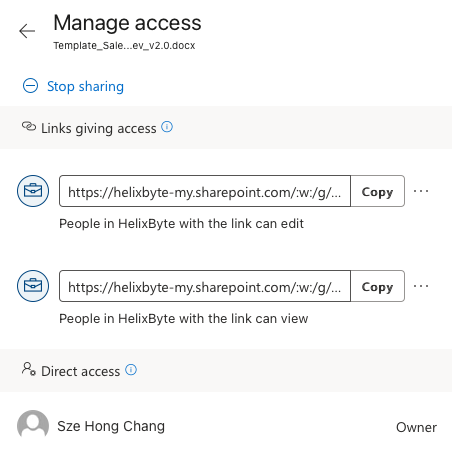
Each item here are the links that can be shared, with the privilleges for the users who have access to the link can do.
Please do not share / expose sensitive document , and always keep an eye on who has access and what rights those users have
If you need to share to someone from outside the organization, please specify the email. And do not select share to anyone in public
Make sure that the share link enables people within the organization have access to view, and the edit permission is up to you.
Next, is to share the files in monday.com. Click under the following two columns, Files(PDF) and Word Doc. Upload the right document type at the right column.

Send the proposal
You have updated the files and shared access to your colleagues within the organization. Now is time to send this proposal to your client. Go ahead and email them, remember to CC stakeholders. Mark the sub-item as done.
You have finish your task! Well done. Make sure to go through this SOP again if you do not recall what to do.